 April 1, 2026
  3 min read

What’s New
-
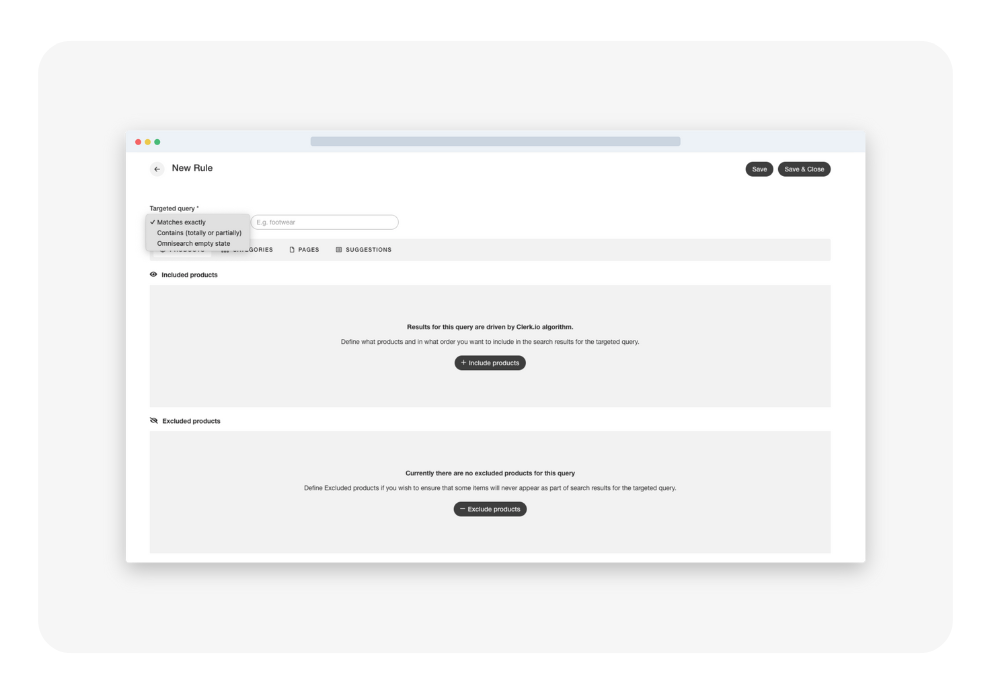
Pin high-priority content Launching a summer collection? Add those products or categories to “Include” and they’ll headline the empty-state carousel.
-
Hide items strategically Blocking clearance items, out-of-season SKUs or informational pages is as easy as adding them to “Exclude.”
-
All inside the Rules engine No templates, no code—just expand a Rule, pick “Empty-state suggestions,” choose Include or Exclude, and select your items.
Why It Matters
Every empty-state view is a chance to guide shoppers toward high-value content. With precise control you can:
- Promote campaigns the instant they go live.
- Keep low-stock or niche items out of the spotlight.
- Surface FAQ or Buying-Guide pages when relevant.
How to Get Started
- Navigate to Search → Rules in your Clerk.io dashboard.
- Create or edit a Rule and select “Empty-state suggestions.”
- Choose Include or Exclude, search for your products, categories or pages, and save.
Tell Us What You Think
Your feedback fuels our roadmap. Drop us a note via in-app chat or at support@clerk.io.
Drive the journey from the very first click!
— The Clerk.io Product Team